
On supported unlocked phones, keep the home SIM for the number you already use and select the travel eSIM for mobile data. Confirm the exact dual-SIM behavior on your model and protect against charges for your home carrier’s calls and data.
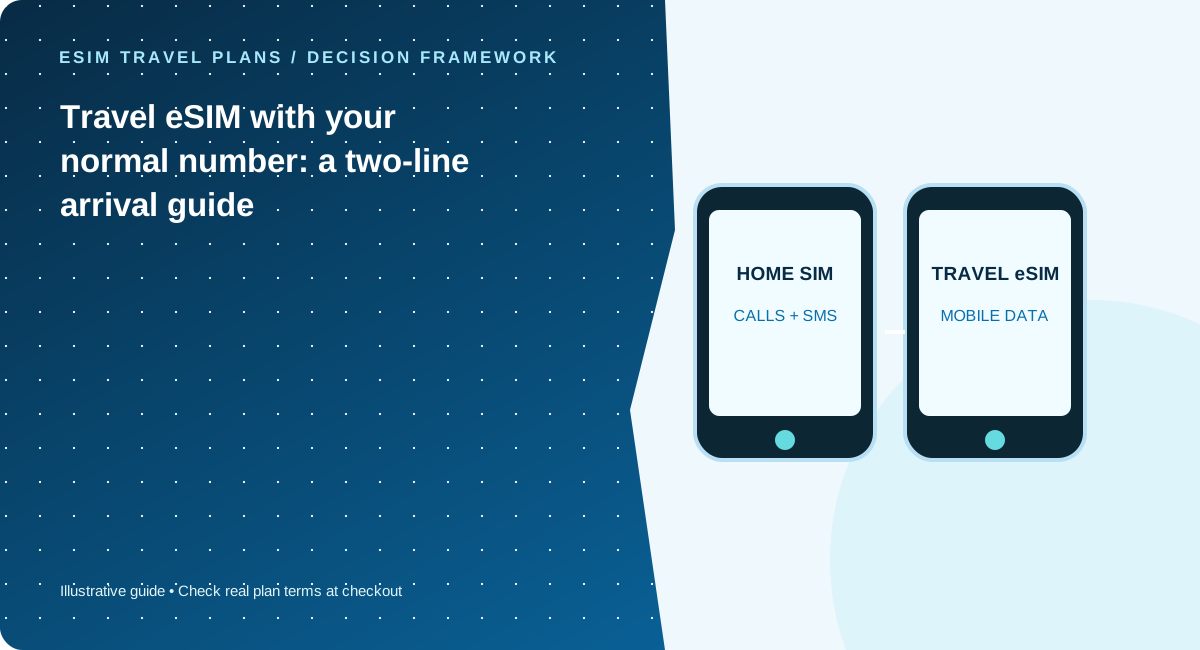
Separate voice identity from internet access
Your home SIM holds your familiar number; the travel eSIM may be data-only. Having both enabled can be convenient for receiving verification codes and maintaining messaging identity, but it is not cost-free by default. A home-carrier voice or SMS event may still have charges. Identify which line handles mobile data, calls, messages and optional automatic switching before you depart.
On iPhone: check the actual data line
Apple documents the option to maintain a home SIM while using a travel eSIM, including supported two-eSIM configurations. The exact screens and behaviors depend on iOS version, country and device. Confirm your cellular data selection and whether “Allow Cellular Data Switching” is appropriate. If you do not intend to use home data abroad, do not rely solely on a visual status icon; inspect the selected line and your carrier’s roaming rules.
On Pixel and Android: do not generalize from one model
Google’s Pixel guidance describes Dual SIM Dual Standby and model-specific two-eSIM support. Samsung and other Android vendors can present different settings. Verify the phone is unlocked, that an eSIM profile can be added, and which line is selected for calls, messages and mobile data. A country-specific handset variant can have different SIM capabilities from the model with the same retail name in another market.
Perform an arrival test
Open a simple website, then mapping and messaging on the travel line. Test your chosen calling setup separately if it matters; do not assume voice or SMS service on a data-only plan. If data fails, inspect the APN only if the provider’s instructions call for it, confirm coverage and roaming settings for the travel eSIM, and contact support from airport Wi-Fi before resetting the profile.
An arrival configuration you can actually rehearse
Before the flight, open the cellular/SIM settings with both lines installed if your provider permits pre-installation. Write down the exact name shown for each line rather than assuming the phone will always label it “Primary” and “Travel.” Practice locating the mobile-data selection and the data-switching preference without changing them mid-call. On arrival, pick the travel line for data and use a small browser or map request to verify it. If the home line remains enabled for conventional calls or verification SMS, understand that those services may be charged by the home operator even when internet traffic goes through the travel profile. Avoid reusing generic screenshots from someone else’s handset: iOS/Android versions and regional hardware differences matter. When returning home, confirm that the usual SIM once again carries mobile data and review the device for an active travel profile that is no longer required.
What to record before asking for technical support
Take note of your exact handset model and purchase region, the operating-system version, whether the device is network unlocked, which SIM is selected for mobile data and whether the problem affects all apps or only one. A mobile signal indicator alone does not prove that traffic is routed through the intended SIM. If a travel eSIM fails to connect, note the error text and location, use Wi-Fi for support, and follow the provider’s instructions for roaming and APN settings. Do not delete a QR profile reflexively; some are not freely reinstallable. For iPhone users, cross-check with Apple’s current dual-SIM and travel guide. Pixel users should consult Google’s model-specific dual-SIM article. Never assume every Android model behaves exactly like a Pixel.
Five checks before you pay
- Verify the precise handset variant supports travel eSIM
- Set travel eSIM as mobile data line
- Review home-carrier roaming charges for calls and SMS
- Save provider setup details offline
- Test navigation and messaging on arrival
Common mistakes to avoid
- A working mobile signal icon does not prove the correct SIM carries data
- Do not delete an eSIM before checking whether it can be reinstalled
- Avoid turning off your home line if you need verification texts
Work with your real itinerary or quotes
Use our free in-browser calculator, then verify live plan stock, exact destination coverage and final charges directly with TripoSIM.
Commercial disclosure: we are owned by BroadNet and promote TripoSIM. No specific retail SKU or guaranteed price is represented here.
Source notes and review standard
This page is educational editorial analysis dated 5 November 2026. It does not claim field measurements, current retailer inventory, exclusive third-party quotes or verified network speeds. Confirm the exact product terms and local phone configuration before paying.
Additional context: our research methodology and editorial standards.
Continue reading
Family of four traveling abroad: the eSIM setup checklist
A family plan is a coordination problem: four devices, different ages, and multiple failure points.
Europe by train and ferry: coverage checks for the UK and Switzerland
A cross-border checklist when your itinerary crosses beyond the simplest EU-roaming assumptions.